.svg)

To register visitors in Outlook with AskCody, open the meeting, open the Visitors add-in, select the guests on the invite and click Add to reception. Reception then sees who is coming, to which meeting and in which room, the guests can receive arrival instructions in advance, and the host is notified when they check in. Here is the full flow, for organizers, receptionists and the administrator who sets it up.
This guide is the how-to. If you are deciding whether to roll pre-registration out to more of your organization, start with Pre-register Visitors in Outlook, which covers why it matters and who to start with.
Before You Start: What the Administrator Sets Up Once
Visitor management needs a reception and the Visitors add-in deployed before organizers can use it. An AskCody administrator does this once, in five steps described in How to set up Visitors.
- Create the reception: in the Admin Center, open Visitors, choose Receptions and click Add.
- Create a check-in kiosk template: decide which fields guests fill in when they check in.
- Create the check-in kiosk: on an iPad with the AskCody Signage app, or on a PC in Chrome or Edge.
- Deploy the Visitors add-in: through the Exchange Admin Center or PowerShell, using the manifest URL, to the users or groups who invite guests.
- Create the hosts: manually or by CSV import.
Then set the notifications, in the visitor management settings: whether hosts get an email or SMS when their guest checks in, and whether guests get arrival instructions by email or SMS before the meeting, and how many days or hours in advance.
How to Register Visitors in Outlook, Step by Step
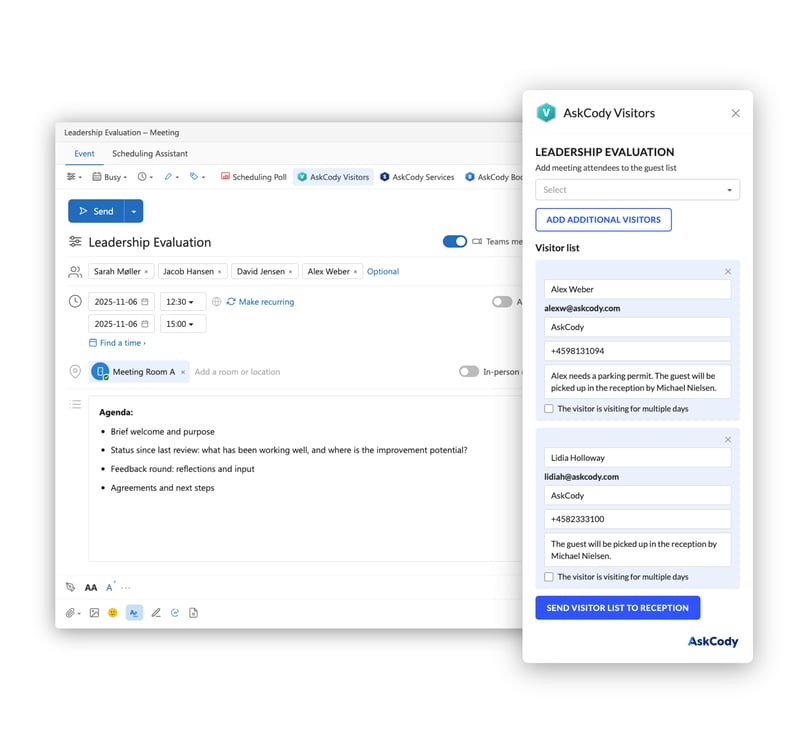
- Create or open the meeting in Outlook and add your guests as attendees, as you would for any meeting.
- Open the Visitors add-in from the ribbon at the top of the meeting window.
- Select the attendees who are visitors. Once added to reception, an attendee is referred to as a visitor.
- Add notes for reception, such as accessibility needs or where the guest should wait.
- Choose who is notified on arrival. This can be you, the host, or an assistant.
- Click Add to reception, then send or save the meeting as usual.
The full walkthrough, with screenshots, is in How to use the AskCody Visitors add-in.
What the Guest Receives Before the Visit
If arrival instructions are switched on, guests receive an email or SMS a set number of days or hours before the meeting. It can carry directions, parking rules, the WiFi password and anything else your building needs them to know. The wording can be customized, with placeholders such as the guest's name.
What Reception Sees on the Day
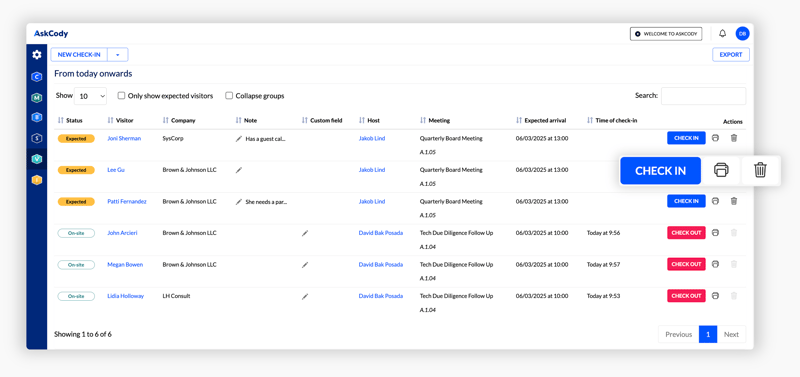
Reception works from the check-in list in the Visitor Management Portal, where all expected and on-site visitors are shown with their host and meeting. When a pre-registered guest checks in at the kiosk with their email address, the check-in is matched to the expected visitor automatically, the status changes to on-site, and a label can be printed, as described in How to use the Visitor Management Portal.
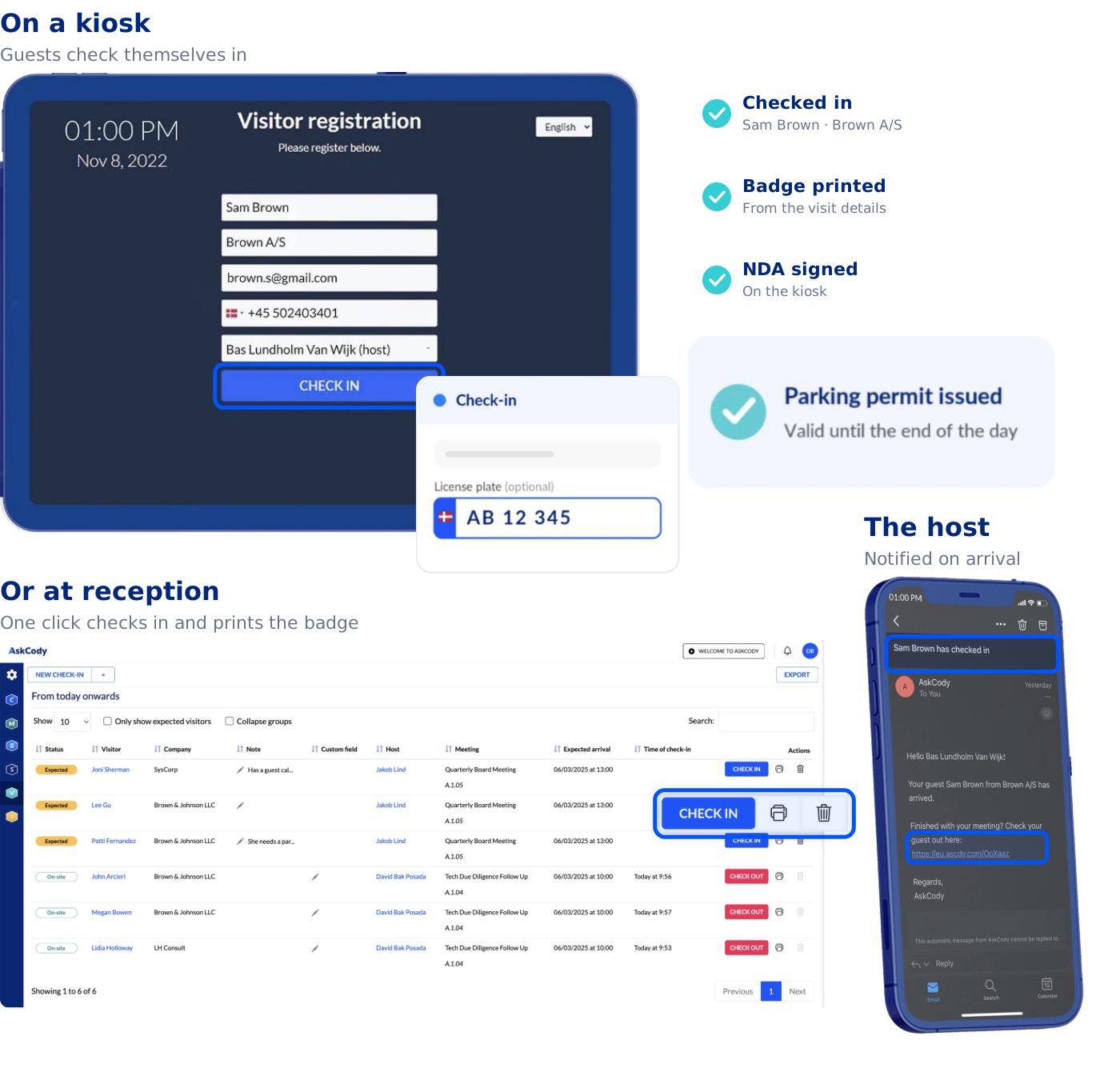
- At the kiosk: the guest enters their email address. If it matches a visitor expected that day at the location, the other fields are filled in for them.
- Terms and NDAs: if the reception uses terms, the guest must accept them before the check-in button can be pressed.
- Parking: a license plate entered at check-in issues an APCOA parking permit automatically.
- Walk-ins: walk-in buttons work like a doorbell and notify one or more hosts.
- The host: is notified by email or SMS, as set for the reception.
One hardware note: automatic label printing is not supported on iPad kiosks. If you need labels to print as guests check in, run the kiosk on a Windows PC.
How to Change or Cancel a Visitor
Plans change, and the visit should follow. Open the meeting in your Outlook calendar, open the Visitors add-in, make the change and click Add to reception again to send it to reception.
When you move the meeting itself, you do not need to touch the visitor registration. Every time you change the time or date of a meeting in Outlook, the additions you made with AskCody follow along, as described in What is follow the meeting intelligence. Reception sees the new time automatically.
Registering Visitors on Someone Else's Behalf
Assistants often register guests for the people they support. That works the same way, provided three things are in place: delegate permissions on the calendar, the add-ins deployed to the assistant, and the AskCody role Add-in User with Delegate Access. The assistant opens the meeting from the event window and uses the Visitors add-in as usual.
Visitor Data and the GDPR
Visitor records contain personal data, so decide how long you keep it and let the system enforce it. In the visitor management settings, Remove PII of Visitors to all Receptions sets the number of days until personal data is removed: 31 by default, and configurable from 1 to 365. SMS notifications are sent through Twilio as a sub-processor to AskCody.
FAQs About Registering Visitors in Outlook
How Do You Register an External Guest From an Outlook Meeting Invite?
Open the meeting in Outlook, open the AskCody Visitors add-in from the ribbon, select the attendees who are guests, add any notes for reception, choose who should be notified when they arrive, and click Add to reception.
Do Guests Need an Outlook Account?
No. Guests are the external attendees on your invite. They receive arrival information by email or SMS, and they check in at a kiosk or at reception.
How Do You Change or Cancel a Registered Visitor?
Open the meeting in your Outlook calendar, open the Visitors add-in, make the changes and click Add to reception again to send them to reception.
Can an Assistant Register Visitors for Someone Else's Meeting?
Yes. An assistant with delegate access to the calendar and the AskCody role Add-in User with Delegate Access can open the meeting and use the Visitors add-in on the owner's behalf.
How Long Does AskCody Keep Visitor Data?
Personal data about visitors is removed automatically after a set number of days. The default is 31 days, and an administrator can set anything from 1 to 365.
Key Takeaways
- Register visitors in Outlook from the meeting itself: open the Visitors add-in, select the guests and click Add to reception.
- An administrator sets up the reception, the kiosk, the add-in and the hosts once.
- Guests can get arrival instructions in advance, and hosts are notified by email or SMS when guests check in.
- Move the meeting in Outlook and the visit follows it; to change the guest list, reopen the add-in and add to reception again.
- Visitor personal data is removed automatically after 31 days by default, configurable from 1 to 365.