.svg)

To auto-release no-show rooms in Exchange Online, turn on EnableAutoRelease for the room mailbox and set how long people have to check in. Two things then decide whether it works: since 1 April 2026 Microsoft requires a space license on each room, unless your users have Teams Premium bought before that date (until renewal), and people need somewhere to check in, such as a Teams panel or an AskCody room display at the door. This guide covers all three routes and how to choose between them.
We covered why no-shows are the quiet half of room booking conflicts in Room Booking Conflicts Are Rarely About Too Few Rooms. This piece is the setup guide: the exact settings, what each one needs, and the traps that make auto-release silently do nothing.
What Auto-Release Actually Does
Auto-release asks one question at the start of each meeting: is anyone actually here? If someone confirms within the window, the room stays booked. If nobody does, the booking is ended or declined, and the room goes back into the pool for anyone else to book in Outlook.
It always needs two halves. A rule on the room, and a way for people to check in. A rule with no check-in point releases rooms that are in use. A check-in point with no rule collects confirmations that change nothing.
Option 1: Exchange Online's Built-In Auto-Release
Exchange Online has a room setting for this. In Set-CalendarProcessing, EnableAutoRelease "specifies if users need to check in to the reserved room, desk, or desk-pool to verify they're using the space", and if nobody checks in within the time window, "the space releases automatically and becomes available for others to reserve" (Microsoft Learn).
How to Turn It on With PowerShell
Microsoft's own example, from the Places check-in and auto-release guide, uses a lenient 20-minute window, the kind Microsoft suggests for rooms in lower demand:
Set-CalendarProcessing -Identity "Conference Room 1132" -EnableAutoRelease $true -PostReservationMaxClaimTimeInMinutes 20PostReservationMaxClaimTimeInMinutes sets the window; the default policy is 10 minutes. Both parameters are available only in Exchange Online. You can also set the same policy in the Microsoft Places management portal under the room's reservation settings, in the Teams admin center through a panels configuration profile, or on a Teams panel itself.
The Two Requirements That Decide Whether It Works
- A space license on the room. Microsoft moved these features to a per-space licensing model on 1 April 2026: "Auto-release requires rooms and desks to have a space license" (Microsoft Learn). The licenses that count are a Microsoft Teams Rooms, Microsoft Teams Shared Space or Teams Shared Space Single Space license. Without one, Microsoft notes in its Places FAQ that "the autorelease policy may be ignored."
- A way to check in. In Places, people check in on a Teams panel, the Teams Rooms console, in Teams meeting chat, or by email for non-Teams meetings. Microsoft recommends "restricting this feature to rooms with Teams panels or Microsoft Teams Rooms devices to ensure that all users have a way to check in."
Option 2: Teams Panels and Teams Rooms
Teams panels show a Check in button about 20 minutes before the meeting starts. If nobody checks in within the set time after the start, "the meeting room declines the meeting invite, sends a cancellation message to the meeting organizer, and the room becomes available for others to reserve" (Microsoft Learn).
- Off by default. Turn on Release room if no one checks in, under the panel's Teams admin settings for meetings, and choose a Release after value. Microsoft notes changes can take up to 48 hours to take effect.
- Licensing. With a Teams Rooms device, room check-in with a Teams panel is included in Microsoft Teams Rooms Pro, not Basic (Microsoft Learn). For a panel without a room device, Microsoft offers the Teams Shared Space license, formerly the Teams Shared Device license, which covers features such as auto-release (Microsoft Learn).
- Exchange Online only. The feature is not available for on-premises room mailboxes.
- Exceptions. When the room itself is the organizer, for example a booking made on the panel, the room does not auto-release.
Option 3: Check-In on AskCody Room Displays
AskCody room displays work directly on the room's calendar in Exchange, so a booking made in Outlook, on the mobile app or at the door is the same booking. Auto-release is a setting in the display template: in the Admin Center, open Displays, choose the display template, and enable Confirm. AskCody calls it room confirmation, "also known as auto-release", and it exists to prevent ghost meetings (Configuring meeting room displays).
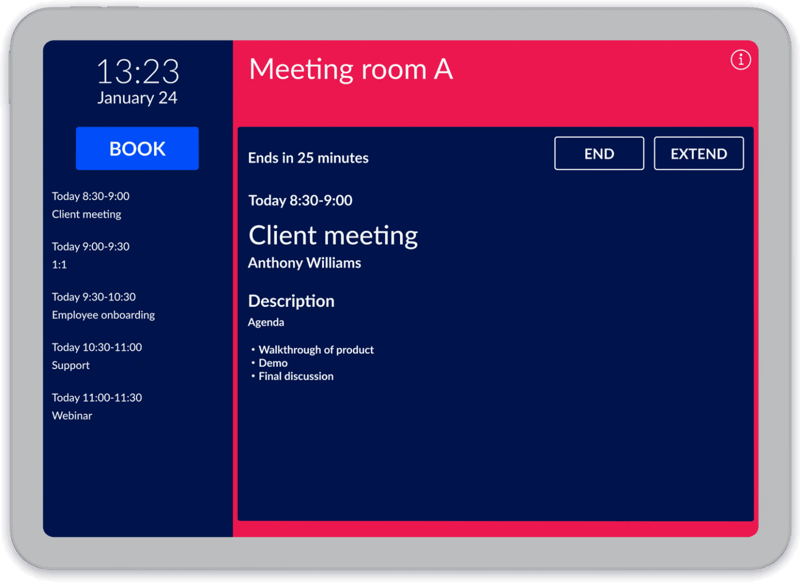
- The window. Meetings must be confirmed within the pending minutes before and after the start, set in the template. The user guide describes 15 minutes before to 15 minutes after.
- What happens without a confirmation. The meeting is ended in the room's calendar right after the pending window, and the room becomes available to book at the display or from Outlook.
- More than check-in. People can end a meeting early, extend it, book the room on the spot, and report broken equipment from the same screen.
- Hardware. AskCody displays run on iPads and iPad minis and on professional PoE screens from Glorystar, Philips and Crestron.
How to Choose
| Route | Where people check in | What it needs |
|---|---|---|
| Exchange Online EnableAutoRelease | Teams panel, Teams Rooms console, Teams chat or email | Exchange Online; a Teams Rooms or Teams Shared Space (including Single Space) license per room |
| Teams panels and Teams Rooms | The Teams panel at the door, or by joining on Teams Rooms | Teams Rooms Pro with a room device, or a Teams Shared Space license for a panel |
| AskCody room displays | The AskCody display at the door | AskCody displays on supported tablets or PoE screens; Confirm enabled in the display template |
If your rooms already have Teams Rooms Pro and panels, Microsoft's route is the natural one. If you want check-in at every door through the displays that already show the booking, without depending on Microsoft's per-room space licenses (AskCody display licensing applies), AskCody displays release no-shows on the room's own Exchange calendar.
Check-In Is Also Your Best Room Data
Every confirmation turns an intention into evidence. Booked hours tell you what people planned; confirmed hours tell you what actually happened. The gap between the two is the size of your ghost-meeting problem, and it is the number to look at before anyone asks for more rooms. David Bak Posada explains how to read it in Booked vs. Actual Meeting Room Data.
FAQs About Auto-Releasing No-Show Rooms in Exchange
Does Exchange Have a Built-In Auto-Release Setting for Rooms?
Yes, in Exchange Online. The EnableAutoRelease parameter of Set-CalendarProcessing releases the room if nobody checks in within the time set by PostReservationMaxClaimTimeInMinutes. The default policy is 10 minutes, and the parameter is available only in Exchange Online.
What License Do You Need for Room Auto-Release in Microsoft 365?
Since 1 April 2026, Microsoft requires rooms and desks to have a space license for auto-release in Microsoft Places, such as a Microsoft Teams Rooms or Microsoft Teams Shared Space license. Customers who bought Teams Premium before 1 April 2026 can keep using the Places premium capabilities until renewal.
Does Teams Panel Auto-Release Work With On-Premises Exchange?
No. Microsoft states that Teams panel check-in and auto-release is only available for room mailboxes in Exchange Online.
What Happens to the Meeting When a Room Is Auto-Released?
With Teams panels, Microsoft says the room declines the meeting invite, sends a cancellation message to the organizer, and becomes available for others to reserve. On AskCody room displays, an unconfirmed meeting is ended in the room's calendar once the pending window has passed, and the room becomes available.
How Long Should the Check-In Window Be?
Long enough for someone running late, short enough to be useful to the next person. AskCody's displays user guide describes a window from 15 minutes before to 15 minutes after the start, and administrators set the pending minutes in the display template.
Key Takeaways
- To auto-release no-show rooms, you need a rule on the room and a place to check in.
- Exchange Online has EnableAutoRelease, with PostReservationMaxClaimTimeInMinutes setting the window; the documented default is 10 minutes.
- Since 1 April 2026, Microsoft requires a space license per room for auto-release, unless users have Teams Premium bought before that date.
- Teams panel auto-release is off by default and works only with Exchange Online room mailboxes.
- AskCody room displays release unconfirmed meetings at the door, on the room's own Exchange calendar, with the window set in the display template.