
Skip to content

Meeting room booking
for meetings that
actually happen

Find and book the right room in the Outlook invite, by location, purpose, equipment and number of attendees. Check in at the room display, and when nobody shows up, the room is released for someone else.
One booking, one calendar

A booked room should be a used room

Most room booking problems start outside the meeting. A room is booked in a tool Microsoft Exchange cannot see, and two teams end up at the same door. A weekly meeting keeps its room long after the team stopped turning up. People walk the floor looking for a free room while the calendar says every room is taken.

AskCody books rooms where meetings are already planned: in the Outlook invite, against the same room calendars in Microsoft Exchange that Outlook, the room displays and AskCody Maps all use. Every channel sees the same truth, and the room display at the door closes the loop. Check in, or give the room back.
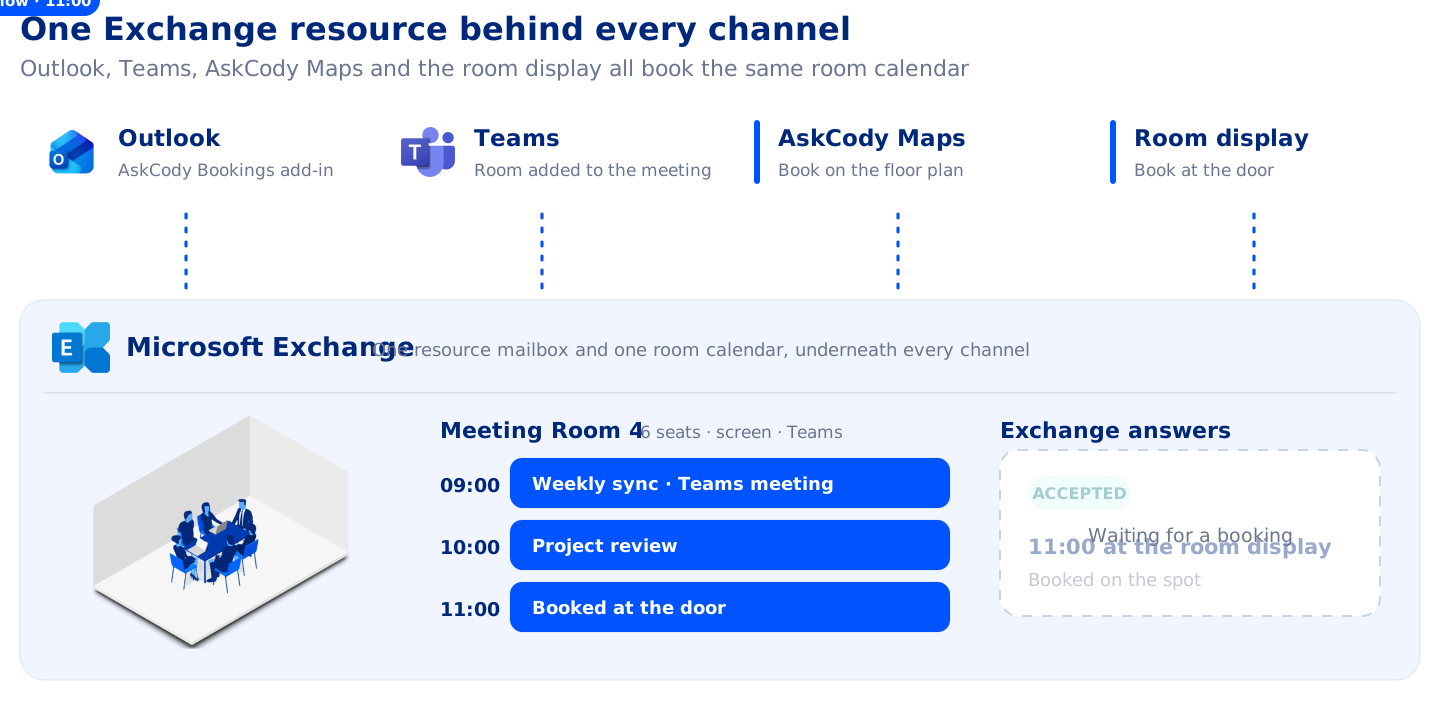
One Microsoft Exchange resource sits behind every channel. Outlook with the AskCody Bookings add-in, a Teams meeting with the room added, AskCody Maps on the floor plan and the room display at the door all book the same resource mailbox and room calendar for Meeting Room 4. A 10:00 booking for 6 people from Outlook is accepted, because the room was free. A Teams meeting at 09:00 for 5 people books the room too. A 10:30 request from AskCody Maps is declined, because the time is already taken. Then someone books the room at the door for 11:00 and that booking is accepted too. Every channel gets the same answer from Exchange.

Book in the Outlook invite

How do you book a meeting room in Outlook?

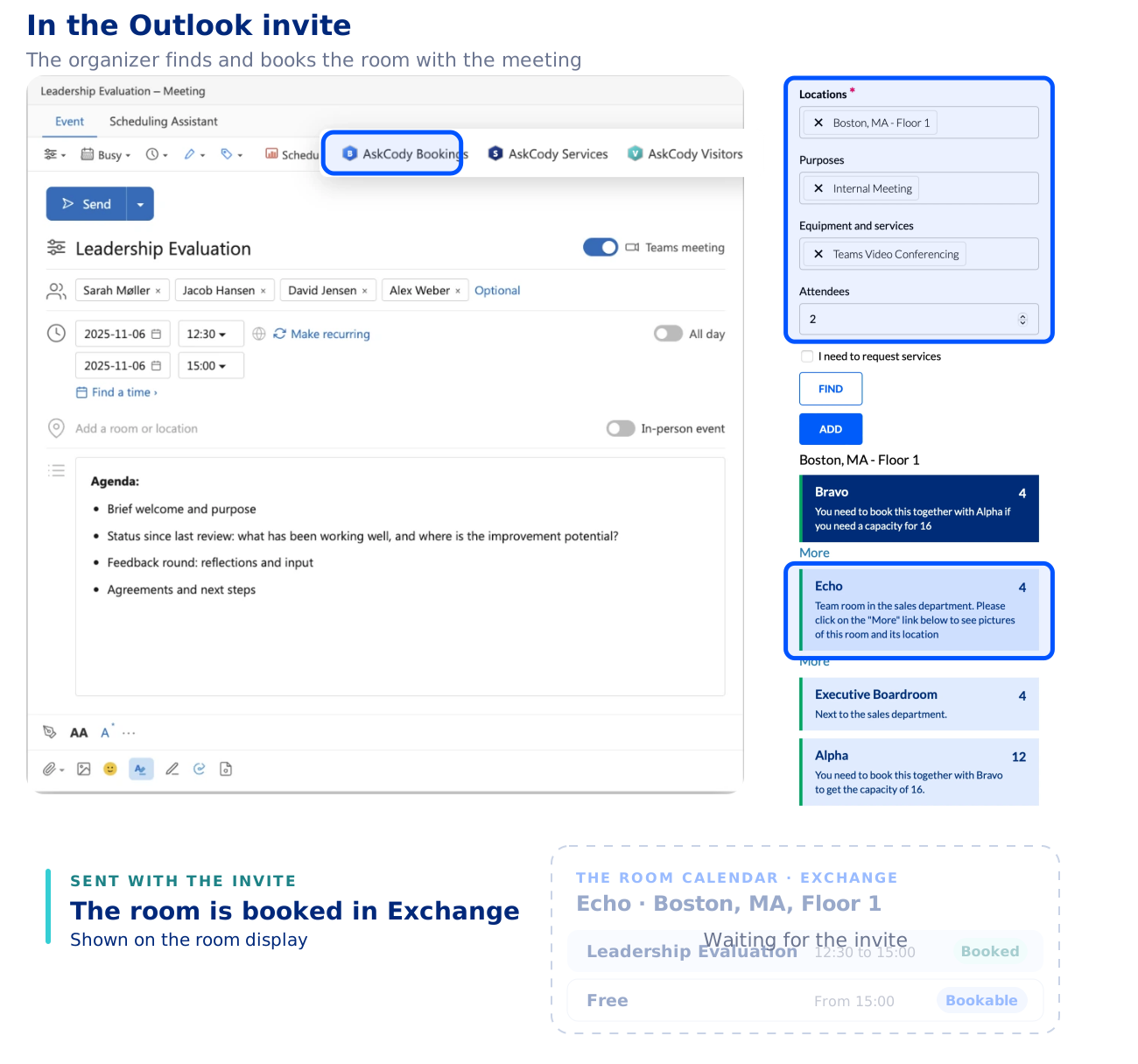
Open the meeting in Outlook and choose the AskCody Bookings add-in. Pick the location, the purpose of the meeting and the equipment and services you need. The number of attendees comes from your invitees, so you only see rooms that fit, each with its capacity. Add the room and send the invite as usual.

Need two rooms, or time for the service team to prepare the room before the meeting starts? Add them in the same invite. The add-in works wherever Outlook supports modern add-ins: Microsoft 365 and Outlook on the web, Outlook for Windows and Outlook for Mac.
How to use the Bookings add-in

An organizer plans the meeting Leadership Evaluation in the Outlook invite and opens the AskCody Bookings add-in, next to AskCody Services and AskCody Visitors. In the add-in, the organizer chooses the location, the purpose of the meeting, the equipment and services needed and the number of attendees, and sees the rooms that fit, each with its capacity: Bravo, Echo, Executive Boardroom and Alpha. The organizer adds the room Echo and sends the invite as usual. The room is booked in its room calendar in Microsoft Exchange, 12:30 to 15:00 for 4 attendees, and the meeting is shown on the room display.
Rules that hold

Every booking follows your rules

Not every room is for everyone. With AskCody you decide who sees which rooms and desks, and Microsoft Exchange applies the rest to every booking, wherever it is made.

Who can book which rooms
Resource groups tied to your Microsoft Entra ID security groups decide which rooms and desks each group sees in the add-in. The executive boardroom only shows up for the people who may book it.

Rooms that need approval
For rooms that need a yes first, the room's delegates approve or decline the request in Outlook, using Exchange's own approval flow.

Restrict who can book which rooms

Booking windows and limits
How far ahead a room can be booked, how long a booking may last and whether it must fall within working hours are set on the room in Exchange, and they hold for every booking. See the scheduling options.

The right size of room
Every room carries its capacity, purposes and equipment. Lower the bookable capacity per location when you need to, and the add-in only offers rooms that fit.

Booking for someone else
Assistants with delegate access open the manager's meeting in Outlook and book the room from the same add-in.

Check in at the door

What happens when nobody shows up for a booked room?

The AskCody room display at the door shows who has the room and what comes next. With check-in switched on, attendees confirm the meeting on the display within a window you set around the start, for example 15 minutes before and after. If nobody confirms in time, the booking is ended in the room calendar and the room is free for others to book.

On the same display, people can book a free room on the spot, extend or end a meeting, and report faulty equipment straight to the facility contact.
See AskCody room displays

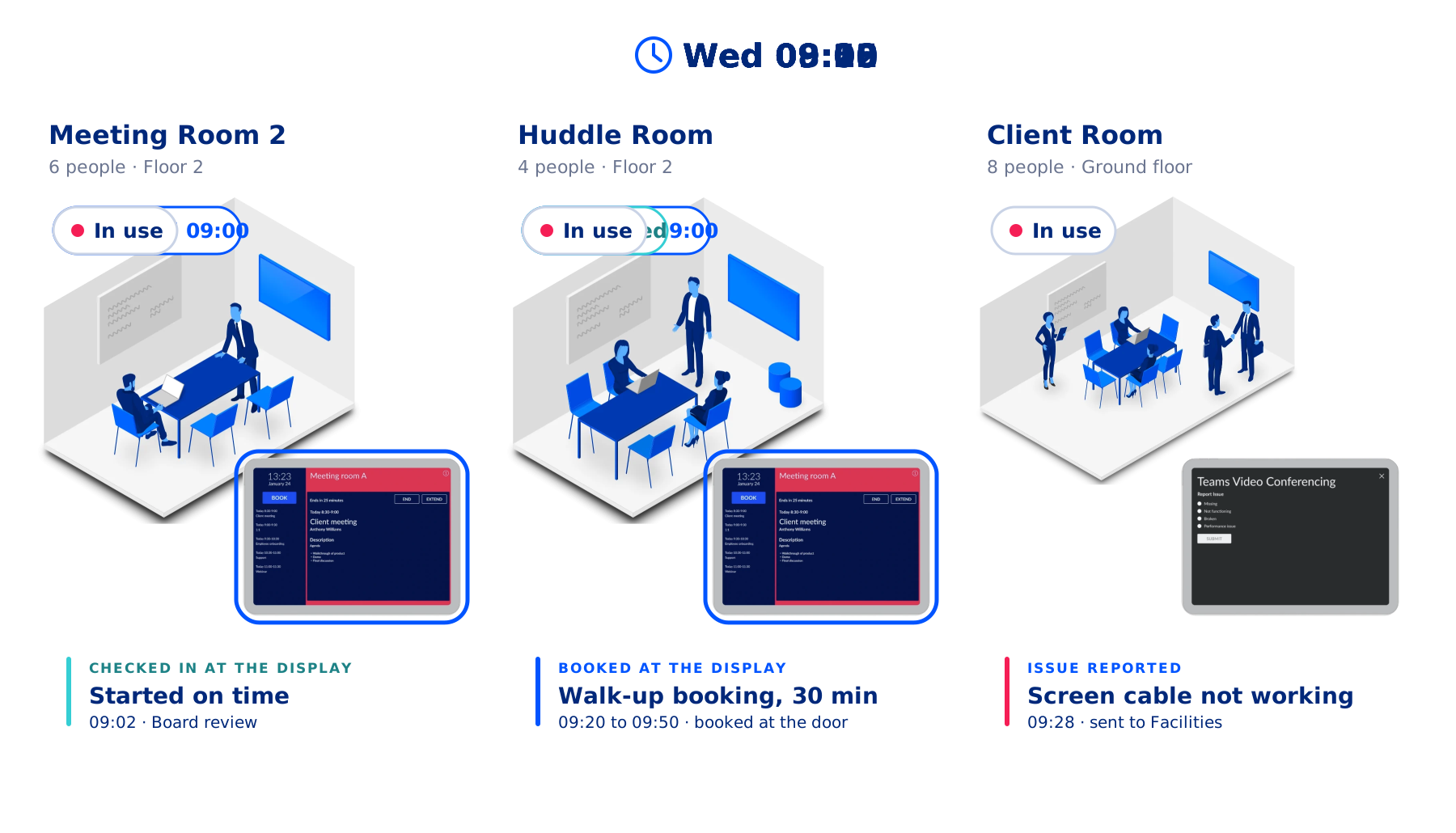
Meeting room displays at the door of three rooms on a Wednesday morning. At 09:00 Meeting Room 2 asks for check-in, the team confirms on the display, and the board review starts on time. In the Huddle Room nobody arrives for the sprint sync, so the room is released automatically at 09:15, and a walk-up team then books it for 30 minutes on the display. In the Client Room a client meeting is extended by 15 minutes on the display, and a broken screen cable is reported from the display and sent to Facilities.
Find it on the floor plan

Book rooms and desks on the floor plan

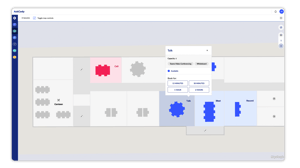
AskCody Maps shows your office as an interactive floor plan: blue for available, red for occupied and gray for areas that cannot be booked. Pick a date, see what is free, and book a desk or a meeting room straight from the map. The booking lands in your Outlook and Teams calendar like any other.

Desks are resources too, with their own capacity, so a shared desk area is never booked by more people than it seats. Put the map on a touchscreen in kiosk mode, with a fixed You Are Here marker, and colleagues and guests can see where they are and where the room is.
See AskCody Maps

AskCody Maps showing an office floor plan with available rooms and desks in blue, occupied ones in red, and a room selected for booking
When plans change

What happens to the room booking when a meeting is moved or canceled?

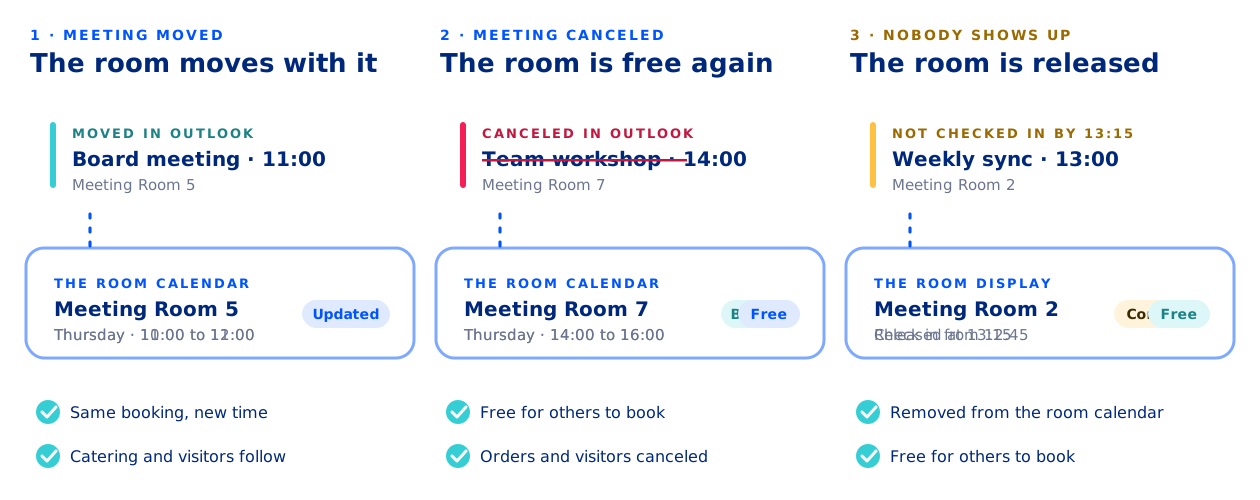
Meetings move all the time. Because the booking lives in the meeting, nobody has to fix it by hand. Move the meeting in Outlook, and the room booking moves with it. Cancel it, and the room is free again for someone else.

Everything you added with AskCody follows the meeting too: the catering order, the room setup and AV request and the visitor registration move or cancel along with it, so the kitchen, facilities and reception work from the current plan.

One calendar, not two
Every booking is a meeting in Microsoft Exchange, in the same room calendars Outlook already uses. There is no separate booking system to retype into and nothing to keep in sync.

Microsoft Teams meetings too
Built into Outlook and Exchange, so every Microsoft Teams meeting gets the right room, services and visitor setup, with no extra app to deploy.

How the booking follows the meeting

Three things that can happen to a room booking when plans change. One: the board meeting moves in Outlook from 10:00 to 11:00, and the booking of Meeting Room 5 is updated to the new time. It is the same booking, and the catering and visitors follow the meeting. Two: the team workshop is canceled in Outlook, and Meeting Room 7 is free again for others to book. Its catering orders and visitor registrations are canceled with it. Three: nobody checks in to the weekly sync in Meeting Room 2. Check-in opens on the room display 15 minutes before the start, and when nobody has confirmed by 13:15 the meeting is removed from the room calendar and the room is free for others to book.

For meeting coordinators

See every booking in one workplace calendar

Workplace Central gives meeting coordinators, receptionists and service teams one view of every meeting in the building: the rooms, the catering and services, the attendees and the notes. Switch between a grid and a list.

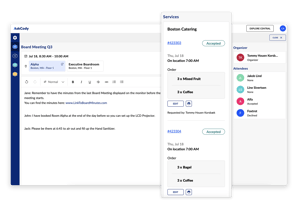
With the right role, drag a meeting to a new time or room in the grid. The change updates in Outlook instantly, and the catering, AV and visitor list follow.
See Workplace Central

AskCody Workplace Central showing the day's meetings per room in a grid, with a meeting opened to show its room, services and attendees
Understand demand

Know which rooms are really used

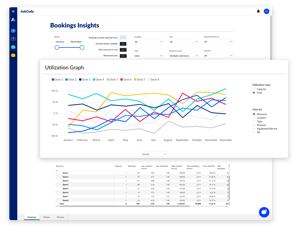
Insights for Bookings is built on Microsoft Power BI and uses real booking data from Microsoft Exchange, with personal data removed. See room utilization over time, by location and room type, and how meeting sizes compare with the rooms they are booked in, with up to 13 months of data.

Plan your space from what meetings actually need, not from a gut feeling. Combine it with insights on services and visitors to see the whole meeting picture.
See AskCody Insights

AskCody Bookings Insights with a utilization graph per room over twelve months and a table of rooms with bookings, capacity and utilization

Made to empower you

Hear how IT, conference services and office teams run room booking with AskCody
Nabil Zerdazi, IT Project Manager, Olympus
Nabil ZerdaziIT Project Manager

Nabil needs us to be integrated in Outlook

"By using AskCody, our employees are able to manage the end-to-end process of organizing their own meeting in Microsoft Outlook, and easily find a workspace that will perfectly fit their needs."

Olympus logo


Jesper Imhof Rosendahl, IT Project Manager, Skanderborg Municipality
Jesper Imhof RosendahlIT Project Manager

Jesper needs us to speed up booking processes

"Now users can quickly find a vacant room and book spontaneous meetings directly on a tablet just outside the meeting room. It gives users peace of mind."

Read the Skanderborg Municipality case study

Skanderborg Municipality logo


Anthony Moore, Director of IT, Burke Warren
Anthony MooreDirector of IT

Anthony needs us to empower meeting bookers

"With AskCody, employees can now book rooms and request services themselves, and it gives them a kind of self-service aspect where they can take control of their own meetings."

Read the Burke Warren case study

Burke Warren logo


Jennie DePhillips, Training Manager, Burns & Levinson
Jennie DePhillipsTraining Manager

Jennie needs us to be user-friendly

"The system can be explained in a clear, logical, and relevant way, and assist even computer-phobic partners in feeling comfortable with handling meeting bookings."

Burns & Levinson logo


Dale Pollock, Conference Services Manager, Eversheds Sutherland
Dale PollockConference Services Manager

Dale needs us to provide structure

"The fact that admins can manage each reservation for a room and each request that is needed for that event or meeting all under one roof really helped a lot with organizing."

Read the Eversheds Sutherland case study

Eversheds Sutherland logo


Common questions about meeting room booking with AskCody

How do I book a meeting room in Outlook with AskCody?

Create the meeting in Outlook and open the AskCody Bookings add-in. Choose the location and, if you like, the purpose of the meeting and the equipment and services you need. The number of attendees comes from your invitees. You see the rooms that fit, each with its capacity. Add the room and send the invite as usual. Read the step-by-step guide.

How does AskCody prevent double bookings?

AskCody books against the room calendars in Microsoft Exchange, the same calendars Outlook, the room displays and AskCody Maps use. By default, Exchange declines a booking that clashes with an existing one, so a room cannot be booked twice for the same time. Double bookings usually slip through when rooms are booked somewhere Exchange cannot see, or when a room is not set to process requests automatically. How to prevent double bookings and no-shows in Microsoft 365.

How does AskCody handle no-shows and ghost meetings?

With check-in switched on for the room display, attendees confirm the meeting at the door within a check-in window you set, for example 15 minutes before and after the start. If nobody confirms in time, the booking is ended in the room calendar and the room is free for others to book. How to configure room displays.

Can I control who can book which meeting rooms?

Yes. Resource groups tied to your Microsoft Entra ID security groups decide which rooms and desks each group sees in the AskCody Bookings add-in. Rooms that are not in a resource group are visible to everyone. For rooms that need approval, the room's delegates approve or decline requests in Outlook (how to set up room approval). Restrict rooms and desks.

Can I book a meeting room on behalf of someone else?

Yes. With delegate access to a colleague's calendar in Outlook, open their meeting from the event window and use the AskCody add-ins as if it were your own. This needs Exchange Online and a supported version of Outlook. Using the add-ins with delegate access.

What happens to the room booking when a meeting is moved or canceled?

The booking is part of the meeting, so it follows it. Move the meeting in Outlook and the room booking moves to the new time. Cancel it and the room is free again. Catering, services and visitor registrations added with AskCody follow the meeting too. How the booking follows the meeting.

Can I book desks as well as meeting rooms?

Yes. Desks are set up as workspaces with their own capacity, and can be booked in Outlook, in the AskCody add-in, in the AskCody mobile app and on the floor plan in AskCody Maps. How to book and manage desks.

Which versions of Outlook does AskCody work with?

The AskCody add-ins work wherever Outlook supports modern add-ins: Microsoft 365 and Outlook on the web, Outlook for Windows and Outlook for Mac. See the compatibility requirements.

How much does meeting room booking with AskCody cost?

Meeting room booking is part of the AskCody Platform, from $5,149 per year, including 1 reception, 5 meeting rooms and 10 workspaces, with all features included. See pricing.

Does AskCody integrate with both Outlook and Microsoft 365? And what about Teams?

Yes, natively.

AskCody is natively integrated with Microsoft Exchange, Microsoft 365 and Outlook. There are no manual processes, outdated third-party tools, unintegrated SharePoint sites or paper-based booking. Everything works inside the familiar Outlook interface, built on modern integrations into Exchange and on Microsoft Azure.

And Microsoft Teams? AskCody is built into Outlook and Exchange, so every Microsoft Teams meeting gets the right room, services and visitor setup, with no extra app to deploy.

Meetings always stay in Microsoft Exchange: no middle layer and no duplicate system of record. See how AskCody integrates with Microsoft 365.

See meeting room booking in your own Outlook

Talk to a consultant and see how the room, the invite and the room display work as one booking. Meeting room booking is included in the AskCody Platform, from $5,149 per year.