.svg)
Room booking conflicts, double bookings included, are rarely caused by having too few rooms. They come from three gaps: two tools showing two versions of availability, bookings that hold rooms nobody uses, and rules nobody enforces. Close those gaps in Microsoft 365, with one booking record, check-in and auto-release at the door, and booked versus actual data, and most conflicts disappear before anyone asks for more space.
You know the scene. An organizer walks into a room the calendar promised was free, and another team is already set up. The agenda slips, a client waits in reception, and someone concludes that the office needs more meeting rooms. Usually it does not. It needs the rooms it has to tell the truth.
This guide is for workplace, facilities and IT leaders who run rooms on Microsoft 365. It covers why conflicts happen, the booking rules worth setting, how check-in and auto-release recover rooms, and how to use data to right-size the portfolio.
What Causes Room Booking Conflicts?
A room booking conflict happens when two meetings claim the same room at the same time, or when the calendar says a room is taken while it sits empty. The first is a collision, usually called a double booking. The second is quieter and more expensive, because it pushes people into the collisions.
Two versions of availability. One person books in Outlook, a coordinator keeps a spreadsheet for the boardroom, and a third person reads a paper schedule on the door. Each channel is right about itself and wrong about the others.
Bookings that hold rooms nobody uses. A weekly series booked six months ago still holds the best room every Monday, long after the project ended. A client call moves to Teams and nobody releases the room. We have written about the cost of these ghost meetings before: the calendar looks full while the corridor looks empty.
Defensive booking. When people see "no availability" often enough, they start holding rooms just in case. Perceived scarcity creates real scarcity, and the cycle feeds itself.
Research backs up the gap between the calendar and the room. A 2026 study in the Journal of Corporate Real Estate starts from the observation that meeting room portfolios are often sized on peak-demand assumptions and booking data that overestimate actual use. Seat sensors in 17 meeting rooms over 10 working days recorded 802 meetings, and 28% of them were single-person meetings.
One Booking Record, Not Two Calendars
Every extra booking channel that keeps its own copy of availability is a place where a double booking can slip through. The fix is architectural before it is behavioral: there should be one record of who has the room, and every screen should read from it.
In Microsoft 365 that record already exists. Each room is a resource mailbox in Exchange, and Exchange declines a request that overlaps an existing booking by default. The problems start when bookings are also made somewhere Exchange cannot see.
AskCody works directly with your Exchange room calendars through Microsoft Graph and does not keep a separate booking database. A booking made in Outlook, on the mobile app or on the meeting room display outside the door is the same booking, so there is nothing to reconcile.
Write a Booking Policy People Can Follow
Technology enforces rules. It cannot invent them. A good booking policy is short, specific and set per room type rather than as one blanket rule for the whole building.
Set Lead Time and Duration by Room Type
Decide how far ahead each type of room can be booked and how long a single booking can run. Exchange defaults are generous: 180 days ahead and up to 24 hours per booking. A huddle room rarely needs either. Tighter limits on high-demand rooms stop speculative holds, while boardrooms and client suites can keep longer lead times.
Give Recurring Series an End Date
Recurring meetings are the largest source of forgotten bookings. Exchange has no setting that makes a series expire unless it is renewed, so make it policy: recurring room bookings end after a set period, such as 8 or 12 weeks, and the organizer books again if the meeting still matters. Back it with a quarterly review of every recurring series.
Decide Who Can Book Which Rooms
Not every room should be open to everyone. In Exchange, you can limit automatic booking of a room to named people or groups, for example reserving the boardroom for client meetings. Keep the rest self-service. Locking everything down only moves bookings into side channels.
How Does Auto-Release Reduce No-Shows?
Auto-release frees a room when nobody turns up. It depends on one small action: someone confirming, at the room, that the meeting is actually happening.
On an AskCody meeting room display, a booking changes to pending when the meeting is about to start. One tap on Confirm and the room is held. If nobody confirms within the window you set, the room is released automatically and anyone can book it, at the display or from Outlook. People can also end a meeting early or extend it from the same screen, and report broken equipment so the right team is notified.
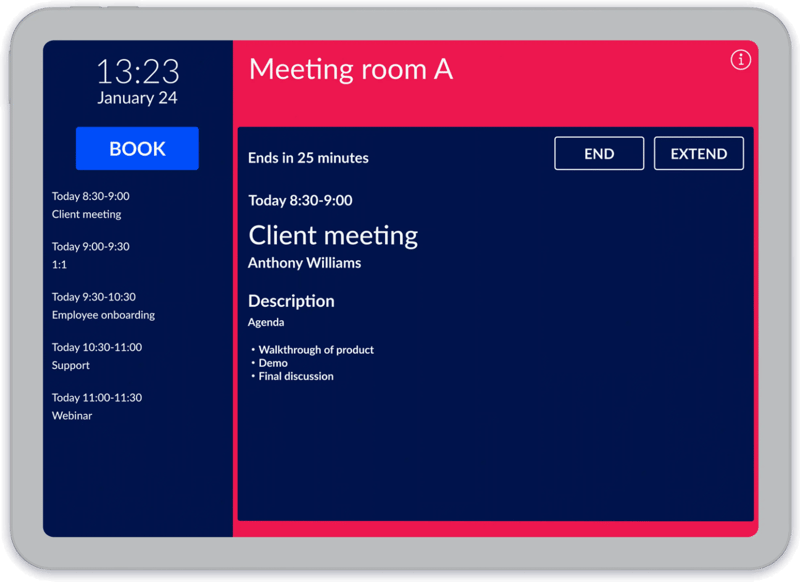
A window of 10 to 15 minutes is a sensible start: long enough for someone running late, short enough to be useful to the person looking for a room.
The bigger win is what check-in does to your data. As David Bak Posada explains in Booked vs. Actual: the two numbers that decide whether your room data can be trusted, a booking is an intention and a check-in turns it into evidence. With confirmations flowing, AskCody Workplace Analytics shows both lines for every room, floor and building: what was reserved and what actually ran. The gap between them is the size of your ghost-meeting problem, measured rather than guessed.
How to Prevent Room Booking Conflicts in Microsoft 365, Step by Step
Each step builds on the previous one. Together they close the gaps described above.
Step 1: Audit Your Rooms and Their Names
List every bookable room with its name, capacity, equipment, floor and building. Names like "Board Room", "Boardroom 1" and "BR-Floor3" for the same space lead to wrong rooms and duplicate bookings. Standardize them.
Step 2: Set Booking Rules on Each Room Mailbox
In Exchange, set the booking window, the maximum duration and who may book each room. Check that conflicting bookings are declined, which is the default. These settings live on the room's calendar processing, so your IT team can apply them per room type in one pass.
Step 3: Organize Rooms So People Pick the Right One
Group rooms into room lists by building and give them capacity, floor and feature details, so people can filter in Outlook instead of grabbing the biggest room "just in case". With AskCody, people can also search for rooms in Outlook by location, purpose and equipment.
Step 4: Put Displays With Check-In Outside Busy Rooms
Start with the rooms that cause the most complaints. Turn on check-in and choose the release window. From that day, every no-show gives the room back and adds a data point.
Step 5: Review Recurring Bookings Every Quarter
Pull every recurring room booking, who owns it and how often it is actually confirmed at the room. End the stale series and tell the organizers. It is the most effective maintenance step you can take.
Right-Size Rooms With Booked Versus Actual Data
Policies and auto-release handle behavior. Data handles the portfolio. If most of your rooms seat twelve and most of your meetings are two people on a call, no rule will fix the mismatch.
The Journal of Corporate Real Estate study shows what the data can do. After modelling actual meeting patterns, the researchers chose a new room mix that reduced the active meeting area by 22.8% while lowering failures to about 3%, where a failure means nobody could get a suitable room.
AskCody workplace analytics are built on Microsoft Power BI and use your Exchange booking data, combined with check-ins from the room displays. You can see which rooms are booked but rarely used, which sizes are in short supply, and compare locations, then export the data to combine it with your own.
When Services Fail, the Room Moves Too
Some conflicts start with the room and end somewhere else. The catering went to the old floor, the screen was not set up, reception was not told about the visitor, so the meeting moves at the last minute and collides with another one.
The fix is to order services with the booking. With AskCody, catering, AV and room setups are ordered in the Outlook meeting, and visitors are registered on the same invite. When the meeting is moved, rescheduled or cancelled, the orders and the visitor record follow it. We call it Follow-the-Meeting Intelligence, and it removes the phone calls that turn one change into three problems.
Plan for Peak Days in a Hybrid Office
Hybrid work makes demand spiky. Tuesday and Wednesday can be full while Friday is quiet, and a rule set that assumes an average day fails on both.
When desks and rooms are booked on the same platform, desk bookings tell you in advance how busy a day will be. AskCody handles desk and room booking together, so you can see a busy day coming. On peak days, a shorter maximum duration and a tighter release window keep rooms moving. On quiet days, the rules can relax.
Three Common Mistakes
Restricting Booking to a Few Administrators
It looks like control. In practice people ask assistants to hold rooms, or simply walk in, and you lose visibility. Keep booking self-service and let the system enforce the limits.
Acting on Complaints Instead of Data
"We need more rooms" is the most common request facilities teams hear. The booked versus actual gap often shows the rooms are there, held by meetings that no longer happen. Measure before you lease.
Adding One More Standalone Tool
A separate booking app, a separate visitor system and a separate catering form each add a place where the meeting can drift out of step. Consolidate on one platform that works on the calendar you already have.
A Room Booking Conflict Checklist
- Every room is a resource mailbox in Exchange, with a consistent name.
- Conflicting bookings are declined on every room (the Exchange default).
- Booking window and maximum duration are set per room type.
- Recurring room bookings end after a set period, such as 8 to 12 weeks.
- Rooms with the most demand have displays with check-in and auto-release.
- Rooms are grouped in room lists with capacity, floor and features.
- Recurring bookings are reviewed every quarter.
- Rooms, services and visitors are booked through one platform.
- Booked versus actual data is reviewed before any decision on space.
FAQs About Preventing Room Booking Conflicts
How do you prevent double bookings in Outlook and Microsoft 365?
Keep one booking record. Make every bookable room a resource mailbox in Exchange, leave the default setting that declines overlapping requests switched on, and stop taking bookings in spreadsheets or tools that keep their own copy of availability. When Outlook, the mobile app and the room display all read and write the same Exchange calendar, a room cannot be booked twice for the same time.
What is the most common cause of room booking conflicts?
Bookings made in more than one place. When rooms are reserved in tools that do not share one record, the same room can look free in one and taken in another. Keeping every booking on the room's Exchange calendar removes that gap.
Can Microsoft 365 prevent room booking conflicts on its own?
Partly. Exchange declines overlapping bookings on a room calendar by default, and you can set booking windows, durations and who may book. Microsoft also offers auto-release for rooms with the required Teams Rooms or shared space licensing. What Microsoft 365 does not do on its own is coordinate the catering, AV and visitors attached to a meeting when it changes.
How does auto-release work on AskCody room displays?
When a meeting is about to start, the booking shows as pending on the display. Someone taps Confirm to keep the room. If nobody confirms within the window you set, the room is released and can be booked from the display or from Outlook.
How often should you review recurring room bookings?
Every quarter. List every recurring room booking, check whether it is actually confirmed at the room, and end the series that are not.
What is Follow-the-Meeting Intelligence?
It is how AskCody keeps everything attached to a meeting in step with it. When a meeting moves to a new time or room, or is cancelled, the catering orders, AV requests and visitor registrations update with it.
Key Takeaways
- Most room booking conflicts, double bookings included, come from gaps between tools, forgotten bookings and unenforced rules, not from too few rooms.
- Keep one booking record: the room's calendar in Exchange, read by Outlook, the app and the display.
- Check-in and auto-release give no-show rooms back and turn bookings into evidence.
- Look at booked versus actual data before you decide you need more space.