AskCody Meeting Dashboards are large, read-only screens for a lobby, a reception or a floor entrance that show every connected room, free or in use, and the day’s meetings, read live from the room calendars in Microsoft 365. A meeting room display answers for the one door it hangs beside; a dashboard answers for the whole floor. No release this week: this is a feature focus on a capability many customers already own and few have put in the right place.
The Problem It Removes
Two questions arrive at almost every reception desk before any visitor does: is there a free room, and where is my meeting? Most buildings still answer them the way they did twenty years ago. Someone looks it up, or someone walks.
That walk is where meeting rooms get misused. The person who needs a quiet hour takes the first open door, which is rarely the smallest room. The host whose room fell through cancels rather than search the building. A guest who arrived on time waits in the lobby until someone comes down. Every one of those is a visibility failure that looks like a capacity failure.
What Is A Meeting Room Dashboard?
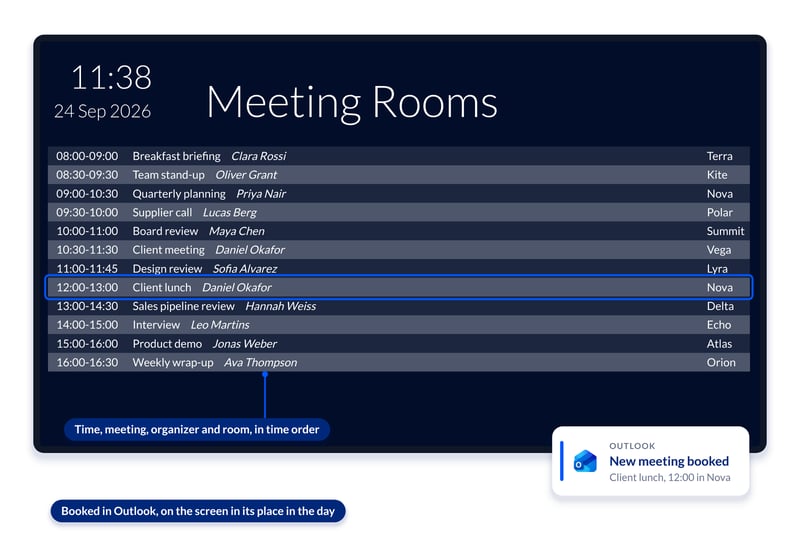
A meeting room dashboard is a large, read-only screen made to be read from a distance in a busy spot: the reception, the lobby, a floor entrance, a cluster of meeting rooms. It shows the room, desk and people calendars you connect from Microsoft Exchange, and reads them in real time, so a meeting booked or moved in Outlook shows on the screen. Nothing is entered twice and nothing is reconciled: the booking in Outlook is the booking on the wall.
Four Layouts, Four Questions
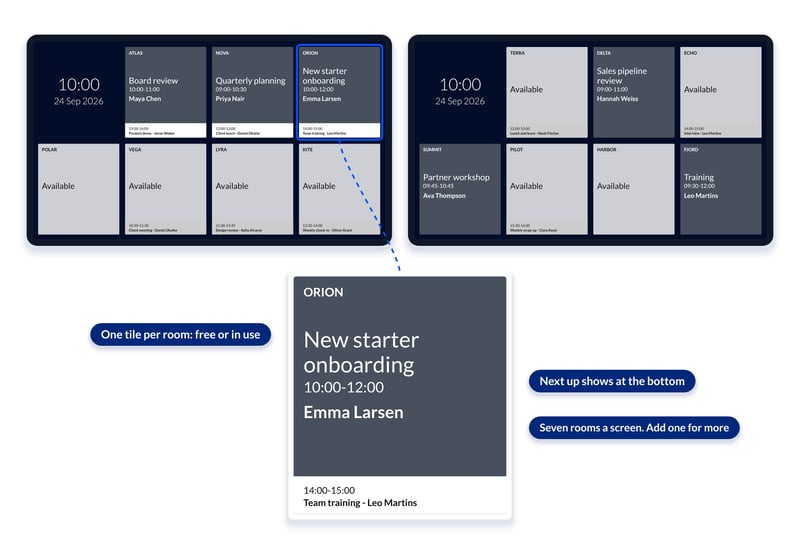
Each layout answers a different question (layout reference in the Help Center):
Availability tile. Every room gets its own tile, up to eight per screen, or seven with the time and date. The tile tells a free room from one in use at a glance, with the current meeting on it and the next one at the bottom. This is the layout that answers whether there is a free room right now, and the one that makes the small room visible to the person who only needs a door.
Availability list. Every calendar with all of its meetings and a green or red status bar. When there are more rooms than fit on the screen, the list scrolls by itself.
Compact. The day’s meetings in time order: when, what, who is organizing and in which room. This is the lobby layout. A guest reads it like a departures board and walks to the right room without asking.
Extended. The same information with more room to breathe, for buildings with fewer meetings in a day.
Meeting Room Display Or Meeting Dashboard: Which Do You Need?
They answer different people. A meeting room display hangs at one door and is interactive: people book a free room on the spot, extend or end a meeting. A dashboard is deliberately read-only. It is the floor-level view, placed where people decide where to go, and the interactive layer stays at the door, where the person doing it is standing in the room they are doing it about. Both read the same room calendars, so a building that already runs displays at its doors has the calendars connected: the lobby board is the same data on a bigger screen.
Why Placement Matters More Than The Screen
The value is not the screen. It is that the screen is the visible surface of one live record. When the room calendars in Microsoft 365 are the single source of truth, the same booking drives the door display, the lobby board, the floor plan in Maps and the report afterwards. Put the board where the decision is made, at the floor entrance where the solo worker chooses a room and in the lobby where the guest arrives, and the behavior changes at the moment it happens, without a policy and without anyone enforcing it.
For the IT owner this is also the point: no second system of record, no synchronization job, nothing for the screen to be wrong about. For Exchange Online, AskCody connects through Microsoft Graph, and Exchange on-premises is supported too. If Exchange is right, the wall is right.
Getting It On The Wall
You set dashboards up once in the AskCody Management Portal, in two parts. A dashboard template decides what the screen shows: which room, desk and people calendars, and in which time zone. Several dashboards can share one template, so you change the content once and every screen follows. A dashboard is the unique URL that shows it: open the URL on the screen and it runs. Any Full HD screen with a built-in URL launcher works, in landscape or portrait, or a small computer running Google Chrome in kiosk mode. AskCody maintains the software; you choose, install and maintain the screens. The step by step is in how to create a Dashboard in the Help Center.
Three Mornings, Before And After
On a Tuesday morning the reception lead at a Nordic law firm answers the same two questions until lunch: is there a free room, and where is my meeting? She creates a template with the twelve ground-floor room calendars, chooses the compact layout and opens the dashboard URL on the screen by the waiting area. She still answers questions all morning, but no longer those two, because the wall answers them before anyone reaches the desk.
At 9:30 on a Monday the facilities manager at an engineering group watches the floor-entrance board at the start of the week. He sets the availability tile layout for the six rooms on that floor, and now the two small rooms show as free on the wall where people choose. The person who only needs a quiet hour takes a small room instead of the eight-seater, and the host with a team review finds the eight-seater free.
On a Thursday afternoon the IT manager at an insurance company is asked to “put a screen in the lobby”. He points a Full HD screen with a URL launcher at one dashboard URL and connects nothing new: the board reads the same Exchange room calendars the door displays already use. When an organizer moves a meeting in Outlook, the board shows the change, and there is no second schedule for him to keep in step.
Start with one screen in the place where people currently walk the corridor.
Key Takeaways
- Meeting Dashboards are large, read-only screens for lobbies, receptions and floor entrances that show every connected room, free or in use, live from Microsoft 365.
- Four layouts answer four questions: Availability tile (is a room free now, and what is next), Availability list (every room’s day), Compact (where is my meeting) and Extended.
- A meeting room display is the interactive screen at one door; a dashboard is the read-only view of the whole floor. Both read the same calendars.
- Placement is the lever. A board where people choose a room makes the right-sized room the easy choice, without a rule.
- Setup is a template, a URL and a Full HD screen. If Exchange is right, the wall is right.