The AskCody visitor management kiosk is a check-in screen on an iPad or a Windows touch PC where guests register themselves, accept your terms if you have them, and notify their host, with nobody at the desk. It is reception for the office that does not have one, and a second lane for the reception that is busy. No release this week: this is a feature focus on a capability many customers own and few have set up.
The Problem It Removes
A guest walks into an office with no receptionist, or into one where the receptionist is on the phone, and stands there. Nobody knows they have arrived. The host is in a meeting, the guest does not know whom to ask, and the visit starts with the guest wondering whether they came to the right building.
A kiosk does not replace the welcome. It makes sure nobody waits for one.
What Is A Visitor Management Kiosk?
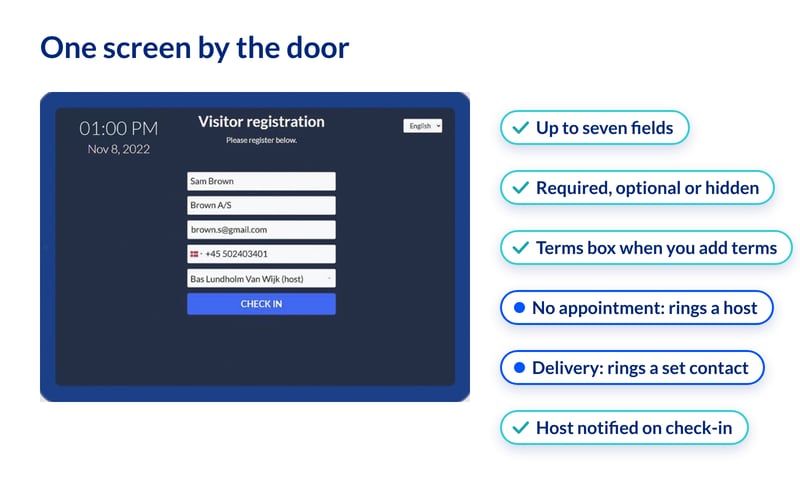
An AskCody visitor management kiosk is a screen by the entrance where visitors check themselves in and notify their host, without reception personnel (how the kiosk works for a visitor). The guest sees your welcome text, the local time and date, and, if you support more than one language, a language selector. They fill in the fields you have chosen, accept your terms if you have set any, and press Check in. Their host is notified.
Seven Fields, And A Decision For Each
The kiosk can ask for up to seven things: email, name, company, phone number, host, license plate and one custom field. Company, email, phone and host can each be required, optional or hidden, and so can the custom field. The license plate field is always optional, and only for organizations using the APCOA Denmark parking integration.
Treat those settings as a decision about what you actually need to know, not a form to fill. A firm that keeps a formal visitor log will want Company required. An office that has no reason to hold visitors’ phone numbers can hide the field altogether. Fewer fields is a faster check-in and less data to look after.
Terms and conditions work the same way: add the content in the AskCody portal and the guest must accept it before checking in. Leave it empty and the checkbox simply does not appear.
Two Buttons For The People Who Are Not Visitors
A courier with a parcel should not fill in seven fields. Below the Check in button, the kiosk can carry two more: one for visitors without an appointment and one for deliveries. Each works like a doorbell, sending a notification to the people you have chosen as contacts for unexpected visitors or deliveries. Small detail, and one most kiosk owners never switch on.
How Do You Set Up A Visitor Check-In Kiosk?
In two steps in the AskCody Management Portal (how to create a visitor check-in kiosk). First, a check-in kiosk template under Admin Center, Visitors: the fields, texts and options the screen shows. Then the kiosk itself, under Check-in Kiosks, which gives you a license key and a URL for the physical screen.
On an iPad, install the AskCody Signage app, enter the license key and press start; the Help Center recommends signing out of the App Store, turning off auto-lock and using Guided Access so the iPad shows only the kiosk (how to display a check-in kiosk on an iPad). On a Windows touch PC, the kiosk runs in Google Chrome or Microsoft Edge.
The Limit Worth Knowing
An iPad kiosk does not print visitor labels automatically. If you want a badge printed the moment a guest checks in, the kiosk needs to be a Windows device. It is the one question to settle before you buy the hardware: does this door need badges or not?
Three Offices, Three Kiosks
On a Tuesday morning at a satellite office of twelve people, with no receptionist and visitors twice a week, the office manager puts an iPad by the door with name, company and host as the only fields. A supplier arrives for a 09:30, checks in in under a minute, and the host’s phone tells her before she has finished her coffee, instead of a guest standing by an empty door wondering whom to ask.
At a law firm’s head office on a Monday, the reception lead sets Company and Email to required and adds the firm’s visitor terms, because the visitor log has to hold up when someone asks for it. She chooses a Windows touch PC for the kiosk so badges print on check-in, and the kiosk becomes the second lane when three guests arrive at once for the 10:00, so nobody queues while she checks in the first.
At a manufacturer’s office on a Thursday afternoon, the facilities manager hides the phone field, because the company has no reason to hold it, and switches on the delivery button with the goods-in team as its contact. The courier at 14:10 presses one button and leaves, rather than interrupting whoever sits nearest the door.
Start with the door where guests currently wait.
Key Takeaways
- The AskCody visitor management kiosk lets guests check themselves in and notifies their host, with no reception personnel needed.
- Up to seven fields; company, email, phone, host and the custom field can each be required, optional or hidden.
- Terms and conditions appear as a checkbox only when you add content for them.
- Two extra buttons, for visitors without an appointment and for deliveries, notify the contacts you choose.
- Set up in two steps in the Management Portal. It runs on an iPad or a Windows touch PC, and only Windows prints visitor labels automatically.