.svg)

The Booking Rule You Already Own and Probably Have Not Configured
Resource Groups have been in the AskCody Platform for a while, and in most tenants they are switched on for approximately none of the estate. That is worth twenty minutes of an admin’s afternoon, because the default state of an unscoped room is not “unmanaged”. It is “open to everyone”, and every new room you add inherits it.
The Support Ticket That Should Not Exist
Somebody in facilities spends part of every week declining bookings. Not resolving conflicts, not re-planning: declining requests for rooms the requester was never allowed to book, which the system cheerfully showed them anyway.
Every one of those declines is a meeting that has already been sent, accepted, and now has to be moved. The requester did nothing wrong. They were shown a room, so they took it.
This is the specific gap Resource Groups closes, and the reason it is worth configuring even in an estate where nothing else needs changing.
What Microsoft 365 Does and Does Not Do
With Exchange and Microsoft 365 you can set guard rails so certain users cannot book certain resources. What you cannot do is scope what people see. Everyone sees every room, and the rejection arrives after the booking request is placed. Sometimes the rejection email is missed entirely, and the first anyone knows is when the meeting fails.
AskCody Resource Groups adds the missing half: what you see is what you book.
How It Works
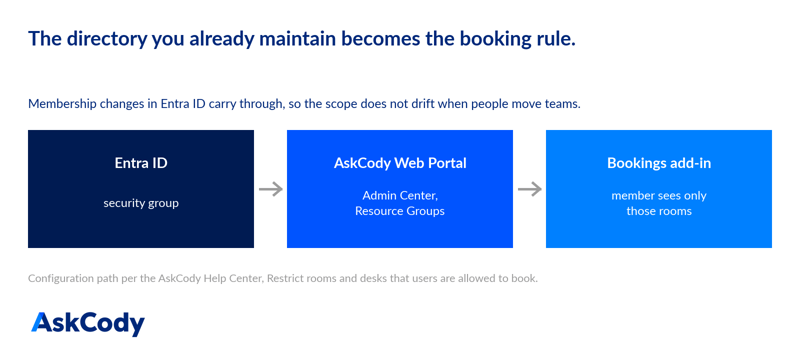
Resource Groups links your existing Entra ID security groups to groups of rooms and desks. Users in a given Entra ID group become members of those resources, and see only those resources in the Bookings add-in for Outlook and Teams. Rooms that a user has no membership for do not appear in their search results at all.
It runs on the directory you already maintain, which is the point. When somebody joins the client-services team, their room access follows, because the membership is the same membership IT is already managing.
Setting It Up
The whole configuration lives in the AskCody Web Portal, in the Admin Center under Resources.
- In Entra ID, create the security groups that match the memberships you want to grant. Think in terms of who genuinely needs a space: client-services staff, Copenhagen floor 1 meeting organisers, the executive assistants who book the boardroom.
- In the AskCody Web Portal, open the Admin Center and find Resource Groups under Resources.
- Click Add, and name the group for the context rather than the mechanism. Marketing Rooms, Floor 1 Rooms and VIP Rooms are the kind of names that stay administrable a year later.
- Add the resources, the rooms and desks the members should be able to book.
- Add the Entra ID groups that should have access.
- Create, and the scope is live in the add-in.
Full walkthrough, with the video, is in the Help Center: Restrict rooms and desks that users are allowed to book.
The Default Nobody Reads
One line in that article does more work than the rest of the feature, and it is the reason this piece exists:
A room or desk that is not placed in a Resource Group stays visible to every user in the organisation searching for availability at that location.
That is a sensible default. It is also inherited automatically by every resource you add from now on. So the fit-out that adds twelve focus rooms and two client rooms adds fourteen resources that everyone can book, unless someone opens the Admin Center afterwards.
Do Less Than You Think
The failure mode with a permissions feature is over-applying it. Scope everything and you have built an approval bureaucracy for a huddle room, and people will route around it with a Teams message, which is where you started.
Scope the rooms where being wrong is expensive and leave the rest open. Most estates need fewer than ten rooms in Resource Groups. Everything else works better untouched, and the purpose and capacity filters in the Bookings add-in already steer people to a sensibly sized room without anybody needing permission.
Key Takeaways
- Resource Groups is shipping capability, not a new release, and it is unconfigured in most tenants.
- Microsoft 365 can refuse a booking but cannot scope visibility, so refusals arrive after the invite has gone out.
- Resource Groups links Entra ID security groups to groups of rooms and desks, so people only see what they may book.
- Any resource not in a Resource Group is visible to everyone. New rooms inherit that default automatically.
- Scope the expensive rooms only. Under ten is normal, and over-scoping recreates the problem it solves.